
Démarrer avec Paddock Live
Tout ce qu'il faut pour installer Paddock Live sur ton ordinateur et l'ouvrir pour la première fois, ou l'essayer sans rien installer.
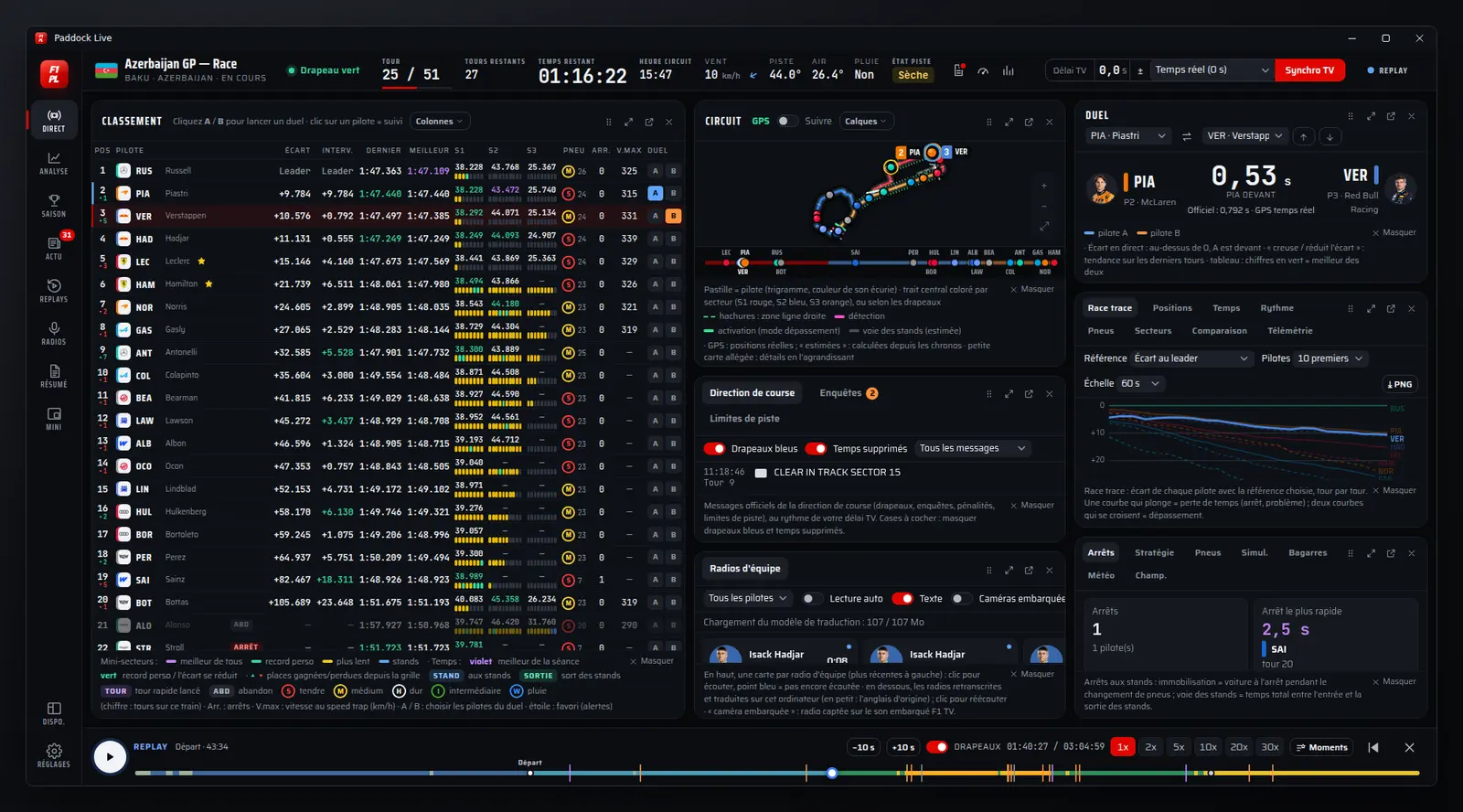
Ce qu'il te faut
- Un ordinateur sous Windows 10 ou 11, macOS (Mac Apple Silicon ou Intel) ou Linux (AppImage x64 ou ARM, ou paquet
.debx64). - Une connexion internet.
- Rien d'autre : l'appli est gratuite, sans compte, et F1 TV n'est pas obligatoire. Avec un abonnement F1 TV, tu as en plus le GPS exact et la télémétrie en direct ; sans, la carte utilise des positions estimées.
Installer sur Windows
- Sur la page de téléchargement, clique sur Télécharger l'installateur (fichier
…-x64-win.exe). - Lance le fichier. Windows peut afficher un avertissement SmartScreen (« Windows a protégé votre ordinateur ») : l'appli n'est pas signée (pourquoi), c'est normal. Certains antivirus peuvent aussi la signaler par erreur : autorise le fichier dans leurs réglages.
- Clique sur Informations complémentaires, puis sur Exécuter quand même.
- Suis l'installateur, puis lance Paddock Live depuis le menu Démarrer.
Version portable
Pas envie d'installer ? Télécharge la version portable (…-portable.exe) : un seul fichier à lancer, sans installation. Range-le dans un dossier à toi (pas dans le dossier Téléchargements si tu le nettoies souvent). L'avertissement SmartScreen est le même.
Installer sur macOS
- Choisis ton fichier : Apple Silicon (M1 et suivants,
…-mac-arm64.dmg) ou Mac avec puce Intel (…-mac-x64.dmg). Pas sûr ? Menu Pomme → À propos de ce Mac indique la puce. - Ouvre le fichier
.dmget glisse Paddock Live dans le dossier Applications. - Au premier lancement, macOS dit qu'il ne peut pas vérifier l'appli : elle n'est pas validée (notarisée) par Apple. Clique sur Terminé, puis va dans Réglages Système → Confidentialité et sécurité, descends et clique sur Ouvrir quand même. Sur les anciennes versions de macOS, un clic droit sur l'appli puis Ouvrir suffit.
- Ensuite, un double-clic suffit.
Si macOS dit que l'appli est « endommagée », ouvre le Terminal et tape cette commande, puis relance l'appli :
xattr -cr "/Applications/Paddock Live.app"
Installer sur Linux
AppImage
- Télécharge l'AppImage qui correspond à ton processeur (x64 ou ARM).
- Rends-la exécutable : clic droit → Propriétés → Exécutable, ou dans un terminal
chmod +x Paddock-Live-….AppImage. - Lance-la par double-clic, ou depuis le terminal.
Paquet .deb
Sur Debian, Ubuntu et dérivés, dans le dossier du téléchargement :
sudo apt install ./Paddock-Live-….deb
Le paquet .deb ne se met pas à jour tout seul : voir Mises à jour.
Au premier lancement
Un court écran de démarrage vérifie s'il existe une version plus récente, puis l'Accueil s'ouvre : prochaine séance, dernière séance sans spoiler, actualités. L'appli te demande aussi si elle peut envoyer des statistiques d'utilisation anonymes : tu peux refuser, et changer d'avis plus tard dans Réglages → Application.
Pour suivre une séance en direct, la suite se passe ici : régler le délai de ta TV.
Sans rien installer : la version web
Ouvre app.paddocklive.app dans ton navigateur : classement, carte, télémétrie, direction de course et radios, avec ton délai TV. C'est pratique pour essayer, ou sur un téléphone. Certaines fonctions de l'appli de bureau n'y sont pas : fenêtres séparées, mini-classement flottant, enregistrement automatique des séances. Pour le téléphone, voir Sur téléphone.
Ça ne marche pas ?
Regarde la page Dépannage. Si ça ne marche toujours pas, envoie-nous une question avec ton système et ce que tu vois à l'écran.
Getting started with Paddock Live
Everything you need to install Paddock Live on your computer and open it for the first time, or to try it without installing anything.
What you need
- A computer running Windows 10 or 11, macOS (Apple Silicon or Intel Mac) or Linux (AppImage for x64 or ARM, or an x64
.debpackage). - An internet connection.
- Nothing else: the app is free, needs no account, and F1 TV is not required. With an F1 TV subscription you also get exact GPS and live telemetry; without one, the map uses estimated positions.
Install on Windows
- On the download page, click Download the installer (the
…-x64-win.exefile). - Run the file. Windows may show a SmartScreen warning ("Windows protected your PC"): the app isn't code-signed (why), that's normal. Some antivirus programs may also flag it by mistake: allow the file in their settings.
- Click More info, then Run anyway.
- Follow the installer, then start Paddock Live from the Start menu.
Portable version
Don't want to install? Download the portable version (…-portable.exe): a single file you just run, with no installation. Keep it in a folder of your own (not in Downloads if you clear that often). The SmartScreen warning is the same.
Install on macOS
- Pick your file: Apple Silicon (M1 and later,
…-mac-arm64.dmg) or Mac with an Intel chip (…-mac-x64.dmg). Not sure? Apple menu → About This Mac shows the chip. - Open the
.dmgfile and drag Paddock Live into the Applications folder. - On the first launch, macOS says it can't verify the app: it isn't notarized by Apple. Click Done, then go to System Settings → Privacy & Security, scroll down and click Open Anyway. On older versions of macOS, right-clicking the app then Open is enough.
- After that, a double-click is enough.
If macOS says the app is "damaged", open Terminal, type this command, then launch the app again:
xattr -cr "/Applications/Paddock Live.app"
Install on Linux
AppImage
- Download the AppImage that matches your processor (x64 or ARM).
- Make it executable: right-click → Properties → Executable, or in a terminal
chmod +x Paddock-Live-….AppImage. - Launch it with a double-click, or from the terminal.
.deb package
On Debian, Ubuntu and derivatives, from the download folder:
sudo apt install ./Paddock-Live-….deb
The .deb package doesn't update itself: see Updates.
On first launch
A short startup screen checks whether a newer version exists, then the Home screen opens: next session, last session without spoilers, news. The app also asks whether it may send anonymous usage statistics: you can say no, and change your mind later in Settings → App.
To follow a live session, the next step is setting your TV delay.
Without installing anything: the web version
Open app.paddocklive.app in your browser: timing, map, telemetry, race control and radios, with your TV delay. It's handy to try the app, or on a phone. Some desktop features aren't there: separate windows, the floating mini leaderboard, automatic session recording. For phones, see On your phone.
Still stuck?
Check the Troubleshooting page. If it still doesn't work, send us a question with your system and what you see on screen.